






Why Your Aim Feels Twitchy on iPhone
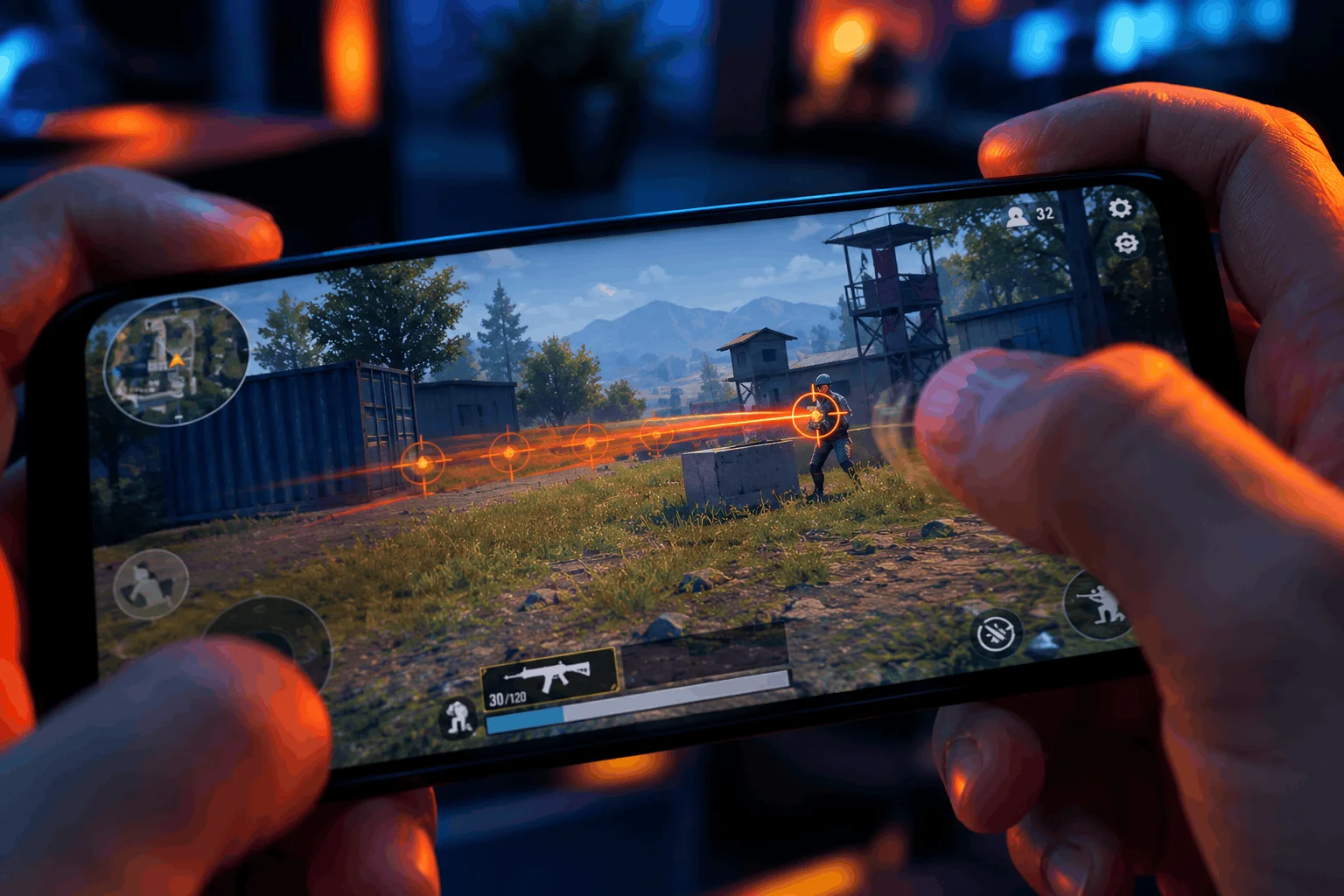
You line up the shot. Your crosshair flies past the target. Sound familiar?
Most iPhone players blame their skill. The real culprit is usually sensitivity. Default settings are too fast for most players, especially on a 6.1-inch screen like the iPhone 13 and 14.
The good news: you can fix this in about 15 minutes. This guide shows you how.
What PUBG Mobile Sensitivity Actually Controls
PUBG Mobile splits sensitivity into three parts. Each one changes how your aim feels.
- Camera sensitivity: How fast your view turns when you swipe without aiming.
- ADS sensitivity: How fast your view turns when you aim down sights.
- Gyroscope sensitivity: How fast your view turns when you tilt your phone.

Each part has separate sliders for every scope. A 6x scope needs much lower sensitivity than a red dot.
That is why one flat setting never works.
Best PUBG Mobile Sensitivity Settings for iPhone
Four settings shape your aim. Learn each one, and tuning gets easy.
- Camera: How fast your view turns when you swipe without aiming.
- ADS: How fast your view turns when you aim down sights.
- Gyro: How fast your view turns when you tilt your phone while not aiming.
- ADS Gyro: How fast your view turns when you tilt your phone while aiming.
Each setting has its own slider for every scope. Red dots need higher values. 6x and 8x scopes need much lower ones.
Why one set of numbers never fits everyone
Your best values depend on six factors:
- Screen size: Bigger screens mean more thumb travel.
- FPS setting: Higher FPS makes aim feel faster.
- Finger setup: Two-thumb and claw players aim differently.
- Play style: Rushers and snipers need different speeds.
- Perspective: First-person feels faster than third-person.
- Preferred weapon: SMGs and rifles reward different values.
Change one factor, and your ideal numbers change too. Copied numbers ignore all six.
Generate your own numbers
Skip the guesswork. Use the PUBG Sensitivity Generator to build your settings.
Here is how:
- Pick your iPhone 13 or 14 and enter your screen size.
- Choose your FPS, finger setup, and gyro option.
- Select your play style, perspective, and weapon.
- Tap Generate sensitivity.
You get Camera, ADS, Gyro, and ADS Gyro values built around you. Copy them into Settings → Sensitivity in PUBG Mobile.
Pro tip: Enter your real setup. Honest answers give better results.
iPhone 13 PUBG Settings That Matter
The iPhone 13 has a smooth touch screen, so small thumb movements travel far. That makes high sensitivity feel twitchy.
Try these tweaks:
- Turn on a lower ADS value first. Most overshooting happens while aiming.
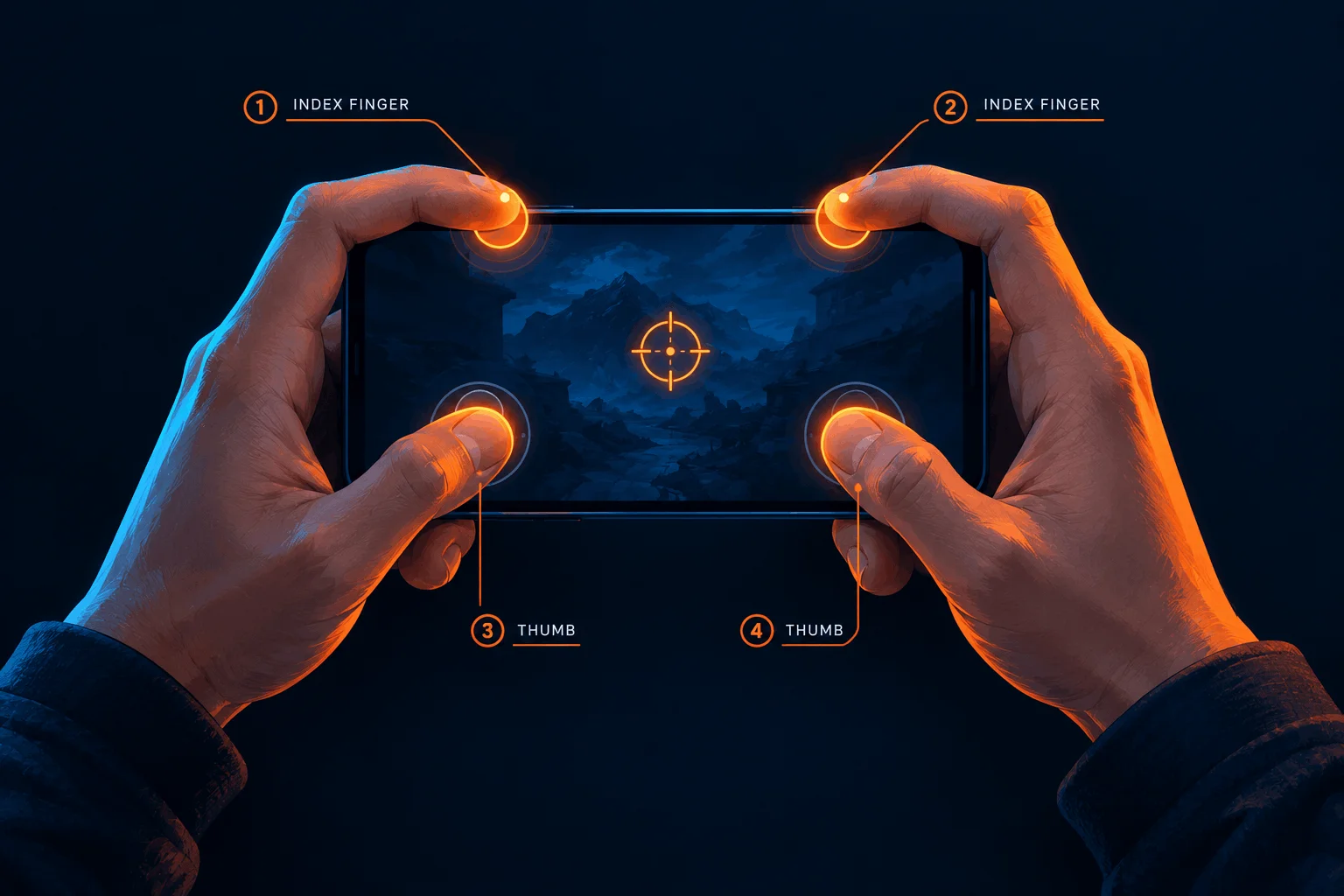
- Use a 3-finger or 4-finger claw layout. You keep your aiming thumb free.
- Keep graphics stable. Pick a frame rate your phone holds steadily. Smooth frames make aim feel consistent.
Consistency beats raw speed. A steady 60 FPS often feels better than a frame rate that stutters.
iPhone 14 PUBG Sensitivity Code: How It Works
You will see “sensitivity codes” all over YouTube and Discord. They are real, but they work differently than most players think.
A code copies one player’s full slider setup into your game. You paste it in, and your sliders change instantly.
Here is how to use one:
- Open Settings, then Sensitivity.
- Tap Import (or the code icon).
- Paste the code and confirm.
Warning: Never trust a code blindly. It fits the creator’s hands, not yours. Treat it as a test setup, then adjust.
Also, never share your login to get a code. Real codes need no password.
PUBG Gyro on iPhone: Worth Using?
Gyro lets you aim by tilting your phone. It is the biggest upgrade many iPhone players skip.
Why it helps:
- Fine aim: Small wrist tilts make tiny, precise corrections.
- Recoil control: A slight downward tilt steadies your spray.
- Less thumb strain: Your thumb handles only big turns.
Gyro vs. ADS Gyro: Know the difference
PUBG gives you two gyro settings. Beginners often mix them up.
- Gyro: Works when you do not aim. It helps with looking around and tracking moving targets.
- ADS Gyro: Works when you aim down sights. It matters most for recoil and long-range fights.
Set them separately. Scoped aim needs more precision than free look.
When to turn gyro on
Pick the mode that fits your habits:
- Always on: Best for players who want full tilt control.
- Only when scoped: Best for beginners. It adds recoil help without disturbing normal movement.
- Off: Fine for two-thumb players who prefer touch aim.
Gyro tips by finger setup
- Claw players (3–4 fingers): Gyro fits best. Your thumbs stay free while your wrists do the fine work.
- Two-thumb players: Start with only when scoped. Tilting while using two thumbs takes practice.
Get your gyro values
Gyro numbers vary more than any other setting. Your grip, FPS, and screen size all change them.
Open the PUBG Sensitivity Generator, switch Gyroscope on, and generate. You get separate Gyro and ADS Gyro values.
How to adapt
Give gyro one week. It feels strange on day one. By day five, many players notice cleaner sprays.
If aim feels shaky, lower your ADS Gyro a little. If it feels sluggish, raise it a little. Test in the Training Ground each time.
The 5-Minute Test to Find Your Best Setup
Do not guess. Test.
- Open the Training Ground.
- Place yourself 50 meters from a target.
- Spray 30 bullets at the target with your current settings.
- Count how many bullets land on target.
- Lower or raise sensitivity by 5%, then repeat.
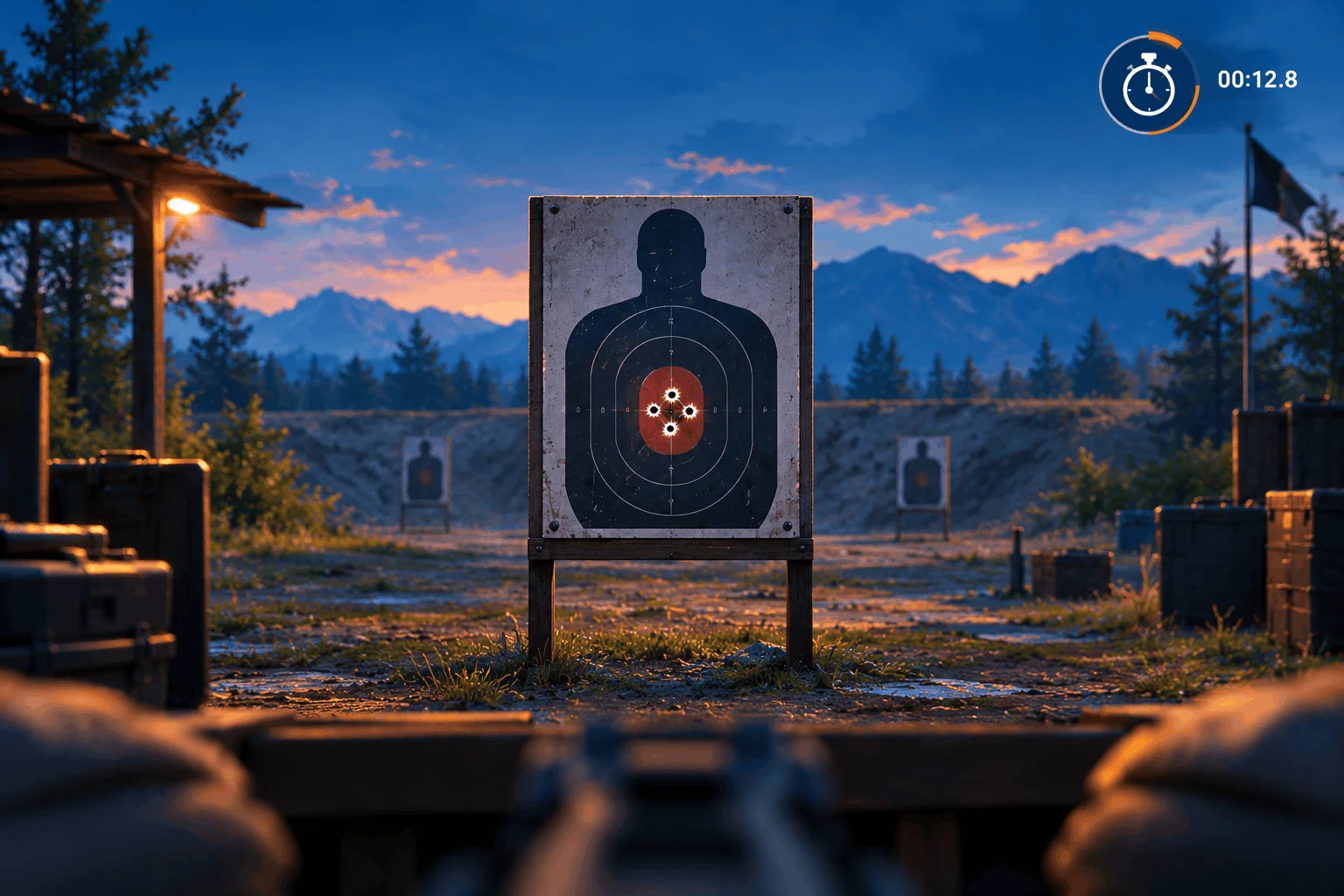
Write each result down. Keep the setting with the most hits.
This simple loop beats any copied code. It tunes the game to your hands.
Common Mistakes to Avoid
- Changing everything at once. Change one slider at a time.
- Copying pros exactly. Pros play on different devices and hand sizes.
- Skipping scoped values. Most missed shots happen with 3x and above.
- Judging after one match. Test for at least five games.
Why This Setup Wins
A good setup does three things. It stops overshoots, steadies your spray, and makes every scope feel the same.
That is the real goal. You do not need the fastest aim. You need predictable aim.
Start with the values above. Test them in the Training Ground. Adjust by small steps.
Within a week, your crosshair will land where you want it to.
Your Next Step
Open PUBG Mobile now. Apply the starting values, or generate a personal set. Then run the 5-minute test.
Found a setup that works? Share your final numbers in the comments, and tell us your iPhone model. Your settings might help the next player fix their aim.